Waikiki Twilight Redux-Photoshop Layer Blend
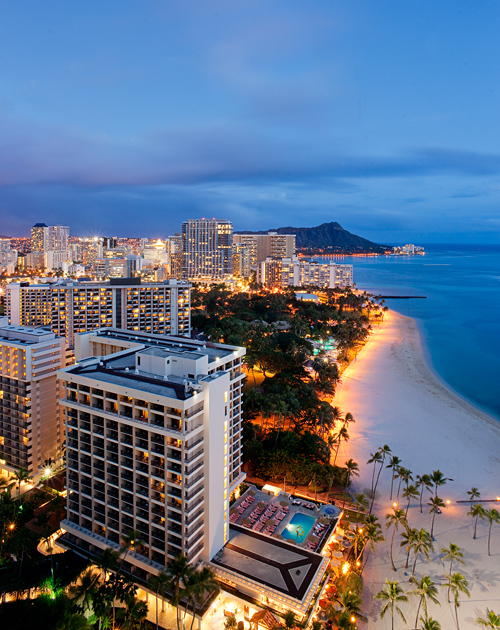
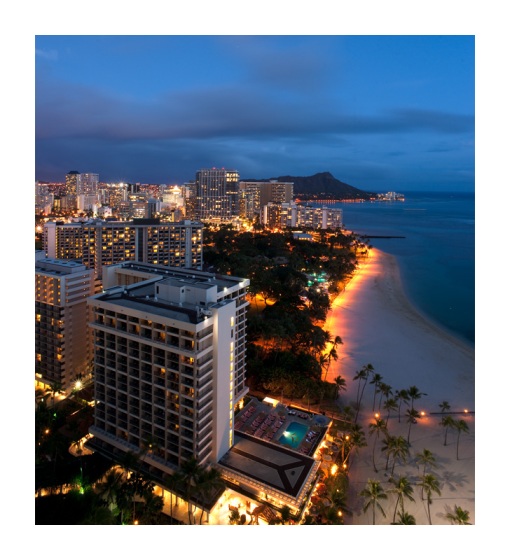
Image 3: Twilight Waikiki Redux. Photoshop blending of two exposures.
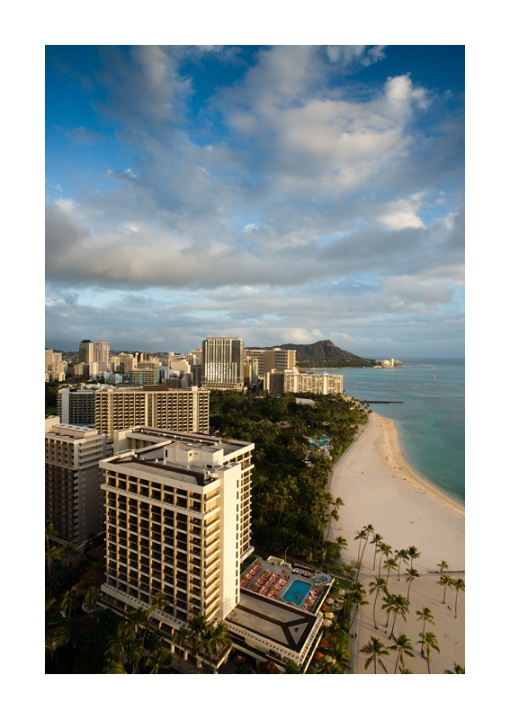
A few days ago I posted a twilight image shot in Waikiki Beach in downtown Honolulu. You can refer back to that image which was posted on January 29th for comparison to todays post. The January post was quickly processed in Lightroom and Photoshop on my laptop and posted for the blog. Todays post takes the same image and shows a simple and quick method to extend the image dynamic range. Image 1 shows the original Sony RAW file. This image was exposed at ISO 100 at f16 for 60 seconds. In Lightroom I made a virtual copy of this file. In the original file I opened up the image by +.50 of a stop an used the fill and recover sliders to slightly open up the image. It also received a bit of capture sharpening. In the Virtual image I opened up the exposure by +1.80 stops and used the fill and recover sliders. The goal here was to bring out more detail in the buildings and the trees surrounding the hotels. Image 1 shows the original RAW file and Image 2 shows the Virtual copy after Lightroom processing. Each file was then exported to Photoshop. The Original was named with “D” for dark and the Virtual was named with an “L” for light. The next steps are performed in Photoshop.
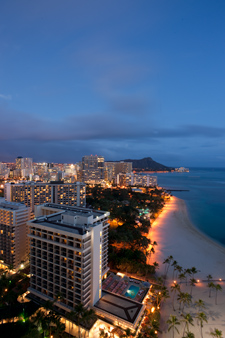
Image 1: Original RAW file processed in Lightroom.

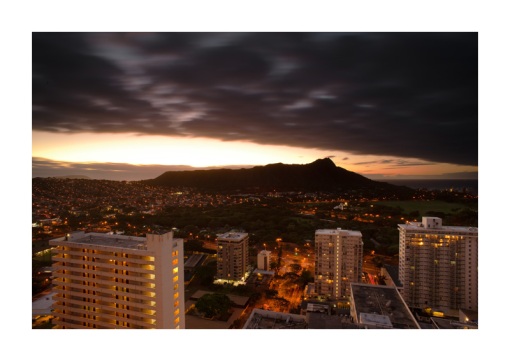
Image 2: Virtual Light image processed in Lightroom.
Step 1: Open the Virtual Light copy in Photoshop. Duplicate the Background and name it Light Layer.
Step 2: Open the Original Dark copy. Select the image and hit Command C to copy it to the paste board.
Step 3: Go back to the Virtual Light copy, make sure the Light Layer is selected and hit Command V to paste the Dark copy into the layer stack. Rename this as Dark Layer. Make sure the Dark Layer is on top of the layer stack.
Step 4: Now comes the mysterious magic of Photoshop. Make sure you select the Dark Layer and hit Option-Command 2. In a few moments you will see the Marching Ants. With the Marching Ants active select Add Layer Mask. Photoshop will create a perfectly blended Black and White Mask linked to the Dark Layer. Select the mask and go to Blur > Gaussian Blur. Set the amount to between 3.0 and 6.0 for high res images. For this file I set it to 5.0. Note: You must do the Gaussian Blur otherwise the effect will appear overdone.
Step 5: Make sure the Mask is selected. Go to the Brush and set it for soft edge, around 200 is good, and the amount to 10 to 15%. Select the background color as White. You can now paint on the mask. Remember that when painting into layers that white reveals and black hides. Painting in White on the black and white mask will reveal the Dark Layer. You want to keep the Brush amount low so you can build up the darkening effect. If you go overboard you can select Black and paint back into the mask. If you look at the original post from January 29 you will see the trees are very dark and the buildings did not quite have the sparkle I was looking for. Though not bad for a quick post it certainly was not what the image could be. The final result achieved through the layer blend really increases the dynamic range of the image.
Step 6: Once you are satisfied with the blending flatten the image and from there you can go through your normal Photoshop editing and processing routines. In this case I performed a high pass, edge mask sharpen, several curves adjustments and a mid-tone contrast layer for some added pop.
The end result shows a marked improvement in the image. There is detail in the trees surrounding the hotels and the buildings are more luminous. The HDR folks out there may of course scoff at this technique but I am not a fan of some of the over processed HDR images I see and prefer this simple method for blending. You can use this technique to process and blend two bracketed exposures or in this case process a single exposure. Many thanks to all who are visiting these posts and providing comments. Together we can advance our skills and find support for this great and all consuming passion.
Bob
 Robert H. Clark Photography Blog